Install in 60 seconds
- Click "Add to Chrome" on the Chrome Web Store page. One click — no credit card needed to install.
- Pin the extension to your toolbar (click the puzzle icon in Chrome → pin Canvas Ninja). This is optional but makes Privacy Guard one click away.
- Open any Canvas quiz in your school's Canvas. Canvas Ninja detects the page automatically — no per-course setup. Toggle Privacy Guard on from the popup and you're protected.
1. Install
One-click install from the Chrome Web Store.
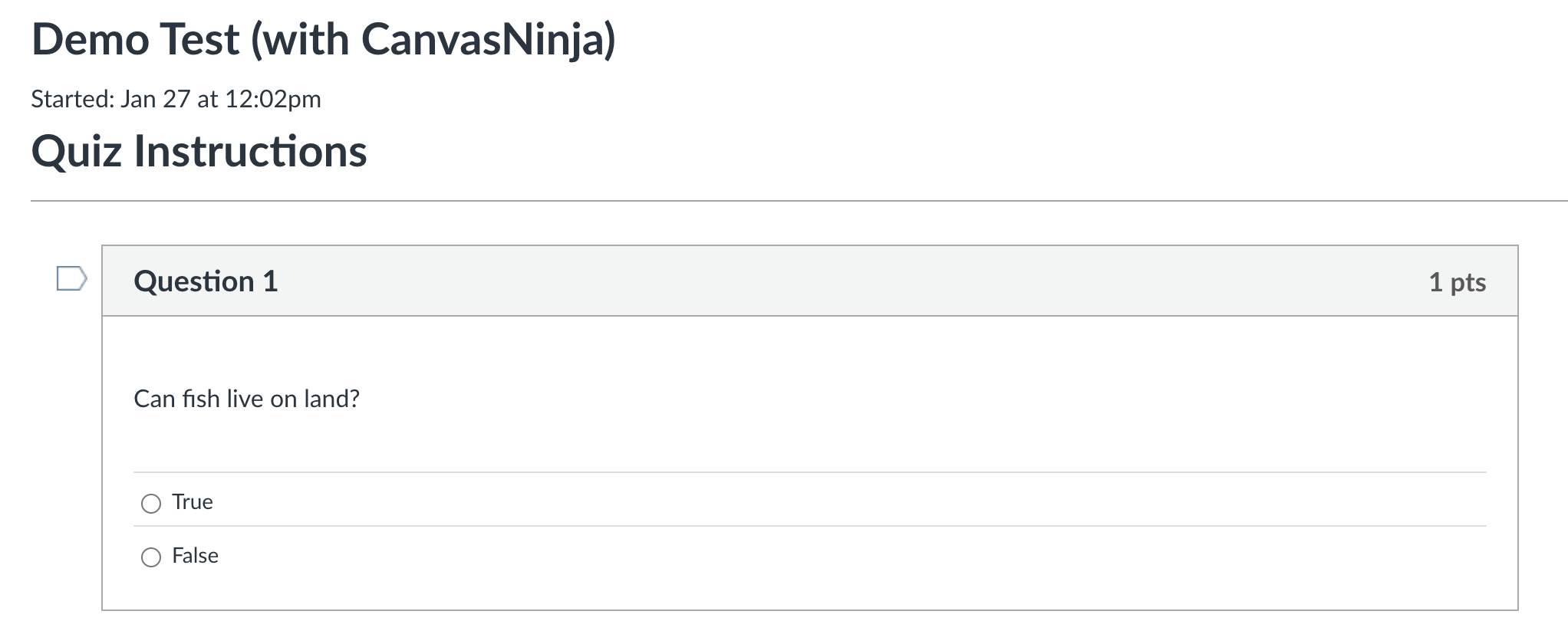
2. Open Canvas
Canvas Ninja detects quiz pages automatically.
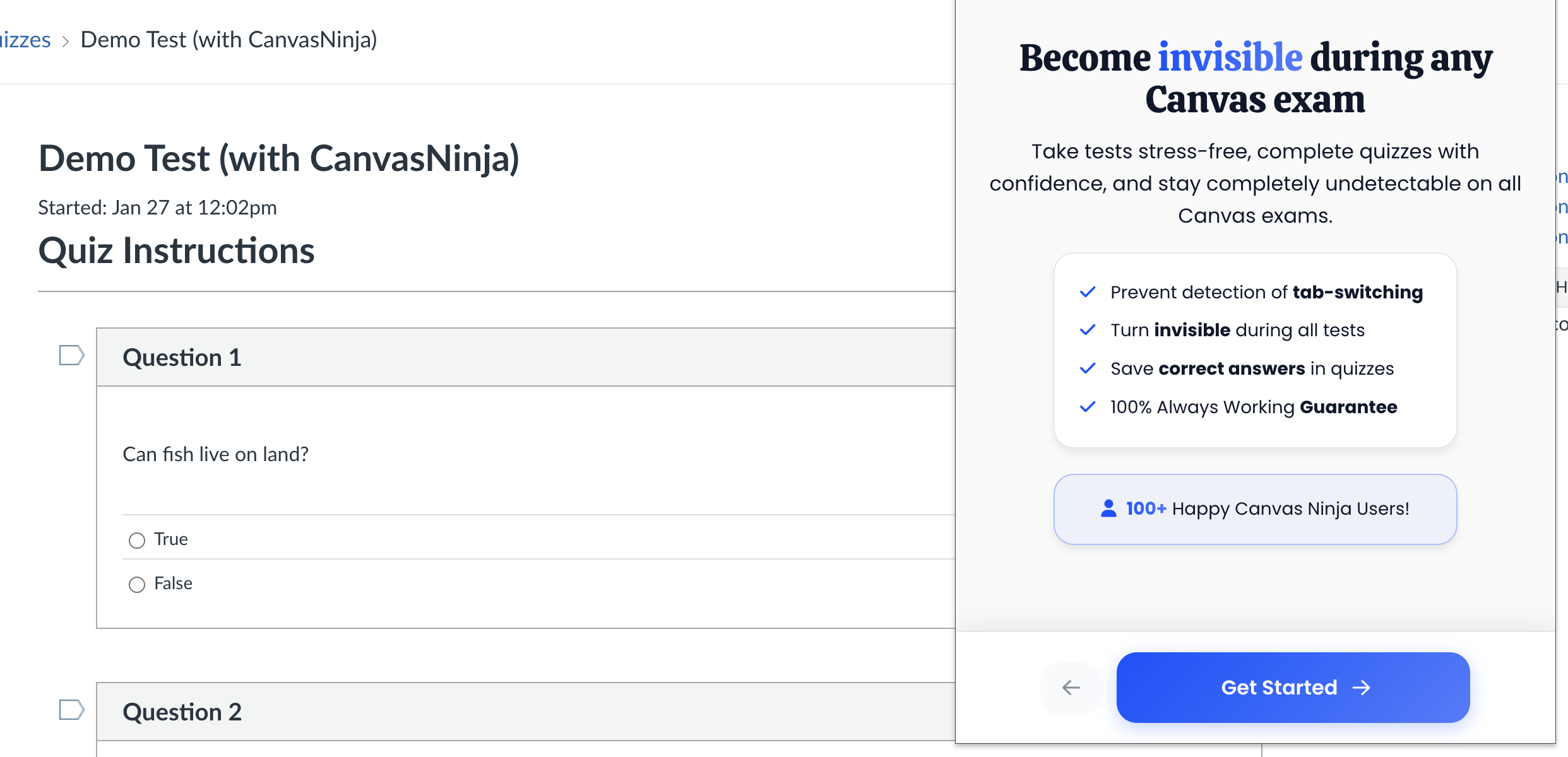
3. Toggle Privacy Guard
Quiz log entries stop. You're protected.
What permissions does Canvas Ninja ask for — and why?
Before you install anything from the Chrome Web Store, you should know exactly what it can see. Here's the full list, in plain English, with what we don't do alongside each one:
For the full word-for-word breakdown, see our Privacy Policy — every claim above is also in the policy.
Why students trust Canvas Ninja
What the extension actually does
Privacy Guard — blocks Canvas quiz log tracking
During supported quiz flows, Canvas can record that the page lost focus as "Stopped viewing the Canvas quiz-taking page." Privacy Guard is designed to reduce supported focus-event reporting in normal Chrome sessions. It does not guarantee a particular log outcome or bypass separate proctoring tools. Read the tab-switch guide →
Answer Saver — auto-fills answers across retakes
On quizzes that allow multiple attempts, Answer Saver reads your previous submissions from Canvas and pre-fills the correct answers into your next attempt. You stop doing the same multiple-choice clicks twice. Available on Premium.
Smart Answers — AI help inside the quiz tab
An AI assistant lives in a panel inside the Canvas quiz page. Ask a question, get an answer — without tab-switching, screenshotting, or pasting into ChatGPT. Available on Premium.
FAQ
- Is the Canvas Chrome extension safe?
- Yes. Privacy Guard intercepts events before they leave your browser, so nothing changes on Canvas's side. There's no server-side fingerprint to detect — your school doesn't see "Canvas Ninja is installed" anywhere.
- Will my school know I'm using the Canvas Chrome extension?
- No. The extension makes no calls to a Canvas Ninja server during quizzes. Canvas itself has no way to enumerate installed browser extensions. The only thing it would notice is the absence of tab-switch events — which looks identical to a student who simply didn't switch tabs.
- Does the extension work on iPad or Safari?
- No. Canvas Ninja is a Chrome Web Store extension — it works on Chrome, Edge, Brave, and Arc on desktop. Mobile Safari and iPad don't support Chrome Web Store extensions at all, so it can't run there.
- Does it cost anything?
- $16.99/month or $67.99 one-time for lifetime. Both plans include Privacy Guard, Answer Saver, and Smart Answers. The Chrome Web Store install itself is free with no credit card required — you only pay when you activate the features. Lifetime is backed by a 30-day refund.
- Can I cancel anytime?
- Yes. Monthly Premium can be cancelled from the billing portal in two clicks. Lifetime is a one-time purchase — no recurring charge.
- Will it slow down my Canvas page?
- The extension adds about 30 KB of JavaScript to Canvas pages, runs only on Canvas pages, and doesn't communicate with any Canvas Ninja server during quizzes. Page load impact is imperceptible.
Ready to install?
Free Chrome install — pay only when you activate. 30-day refund on Lifetime.
Add Canvas Ninja to Chrome